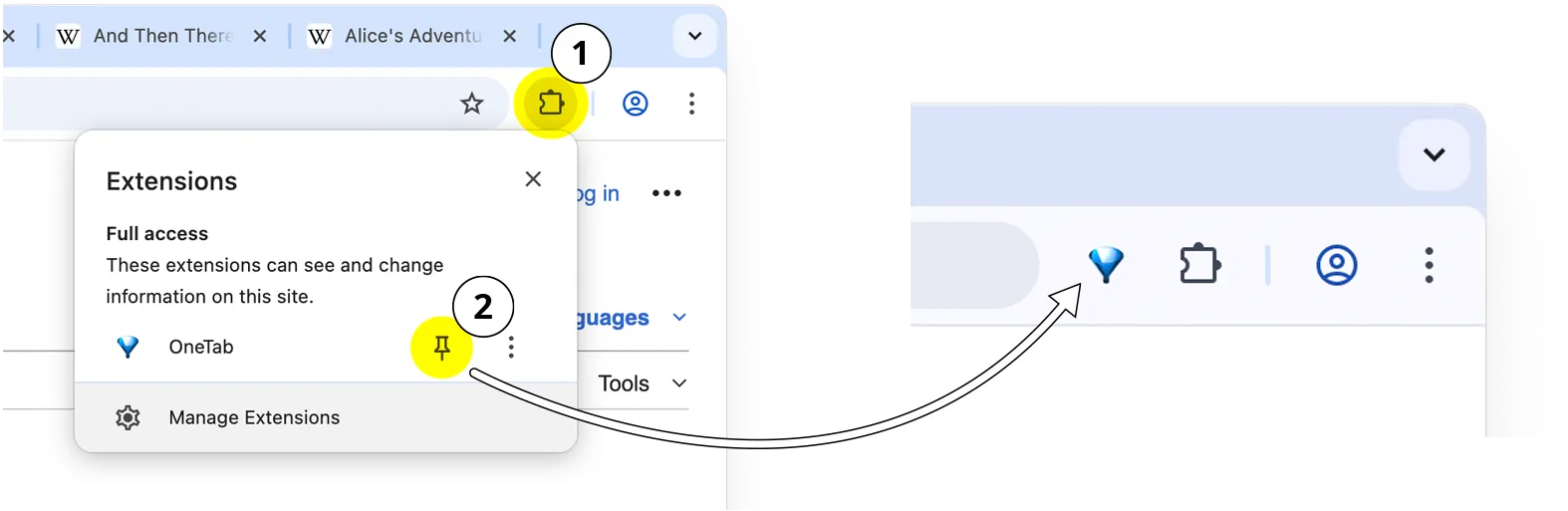
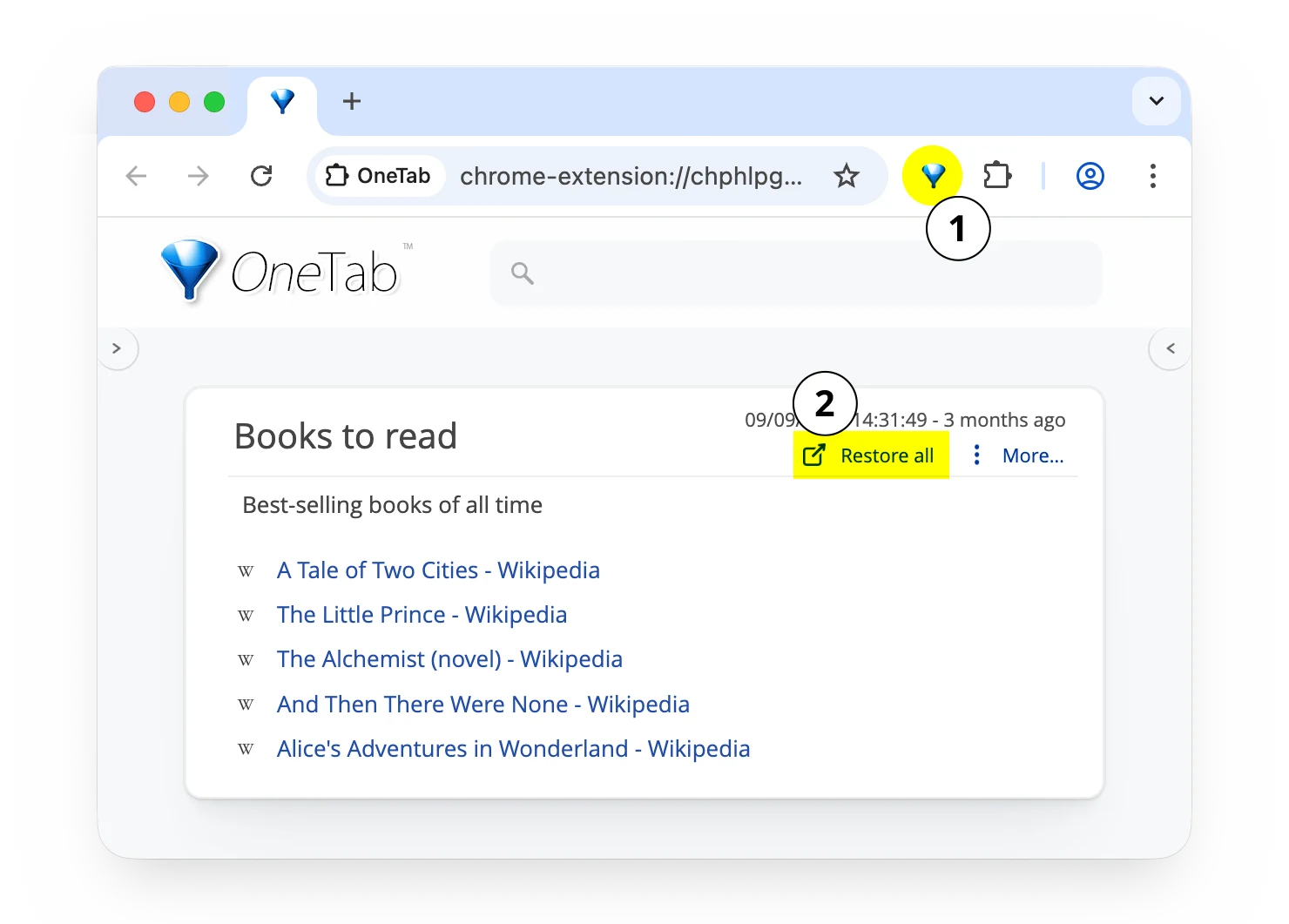
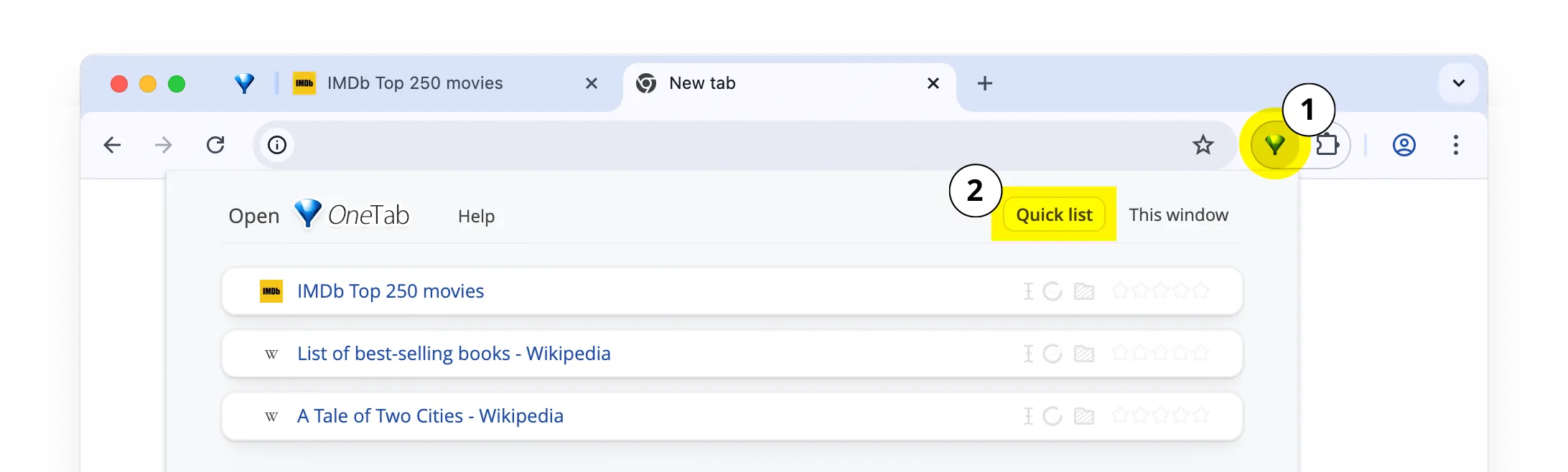
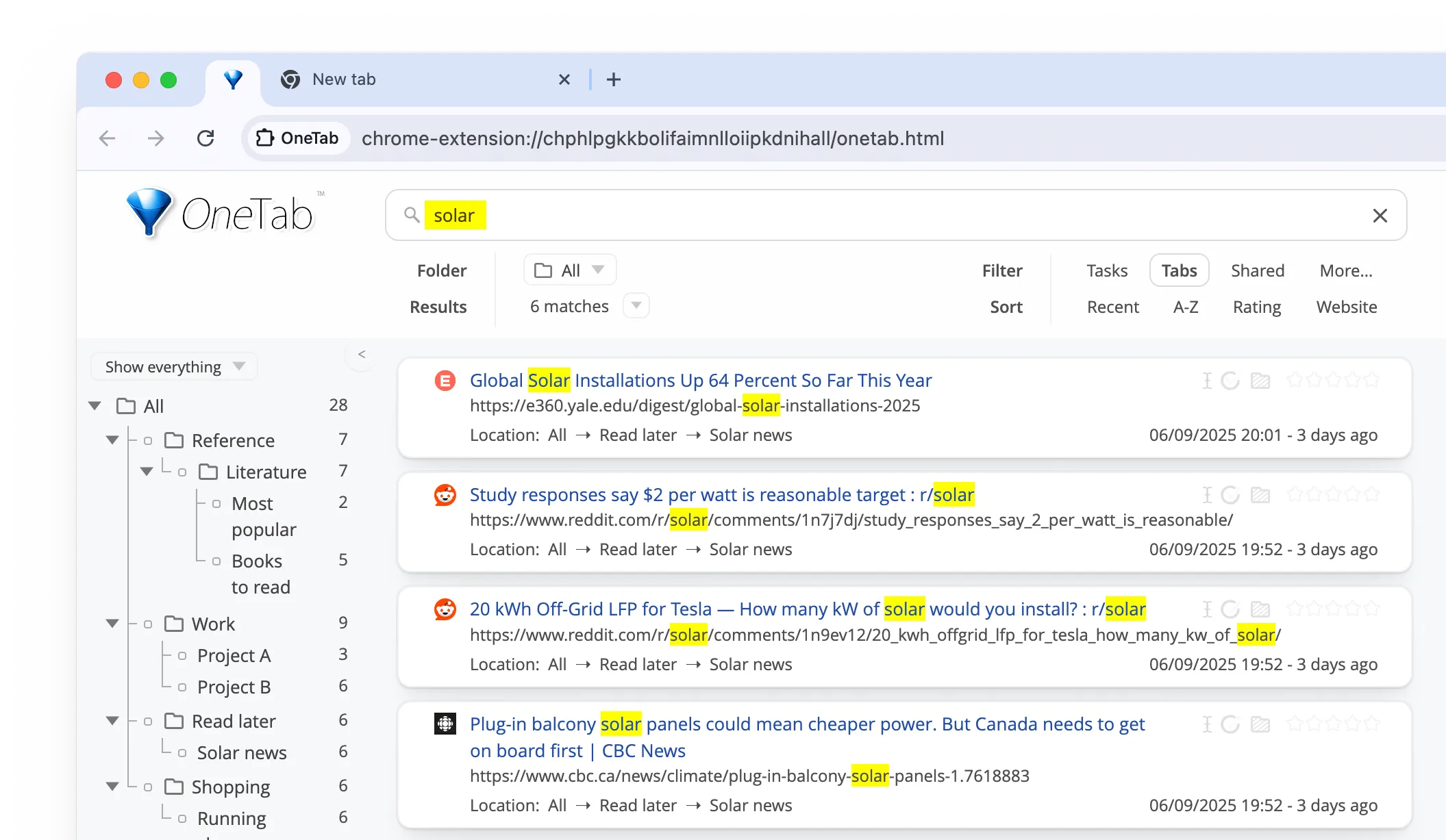
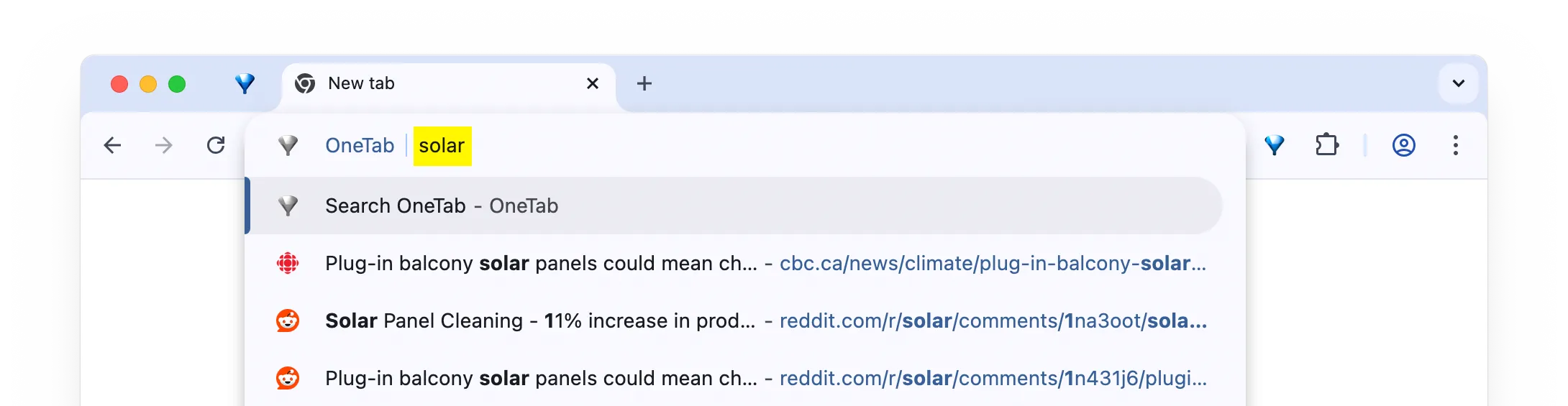
When you click the OneTab icon, you will see a list of your open tabs.
Click the large button to store them in OneTab.


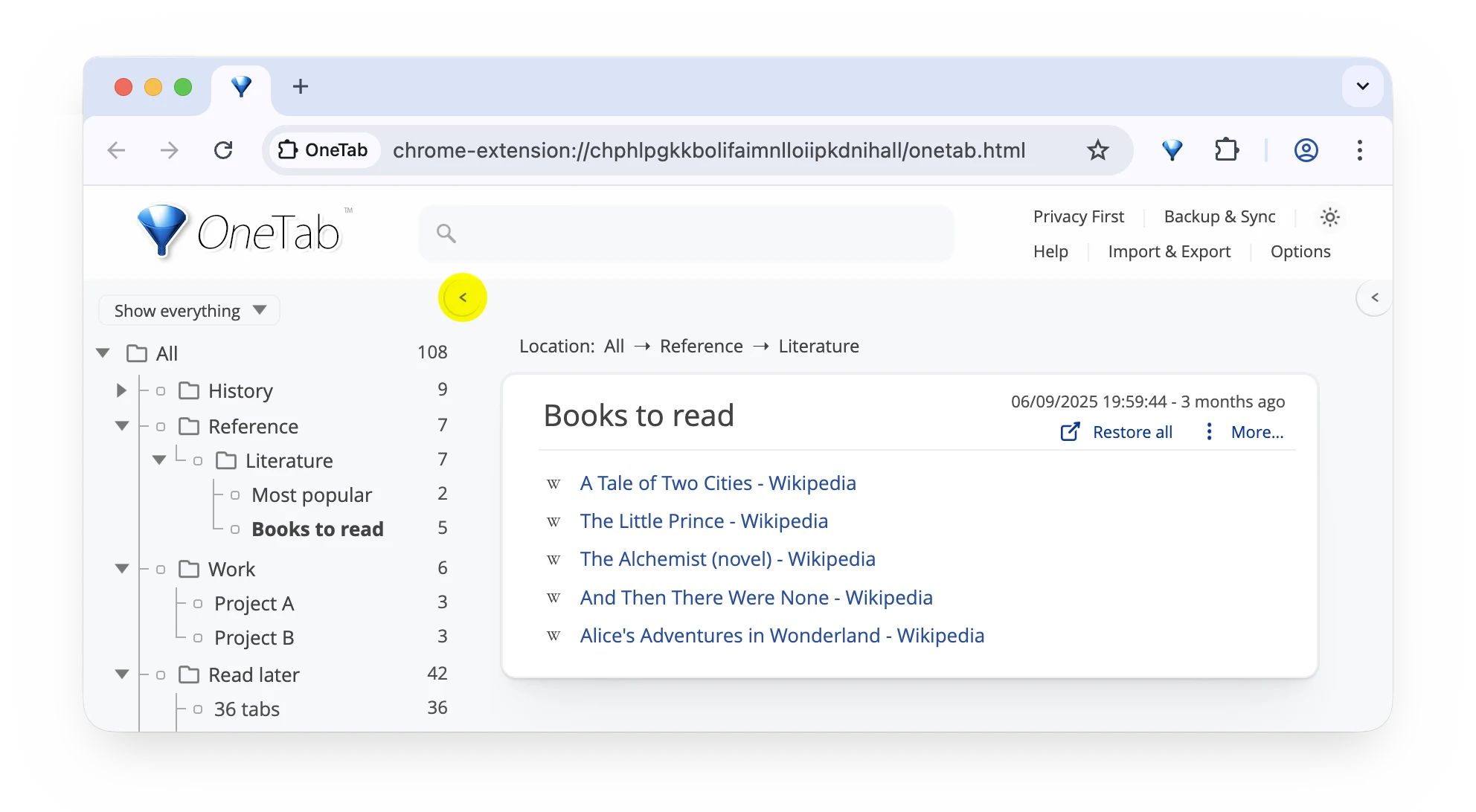
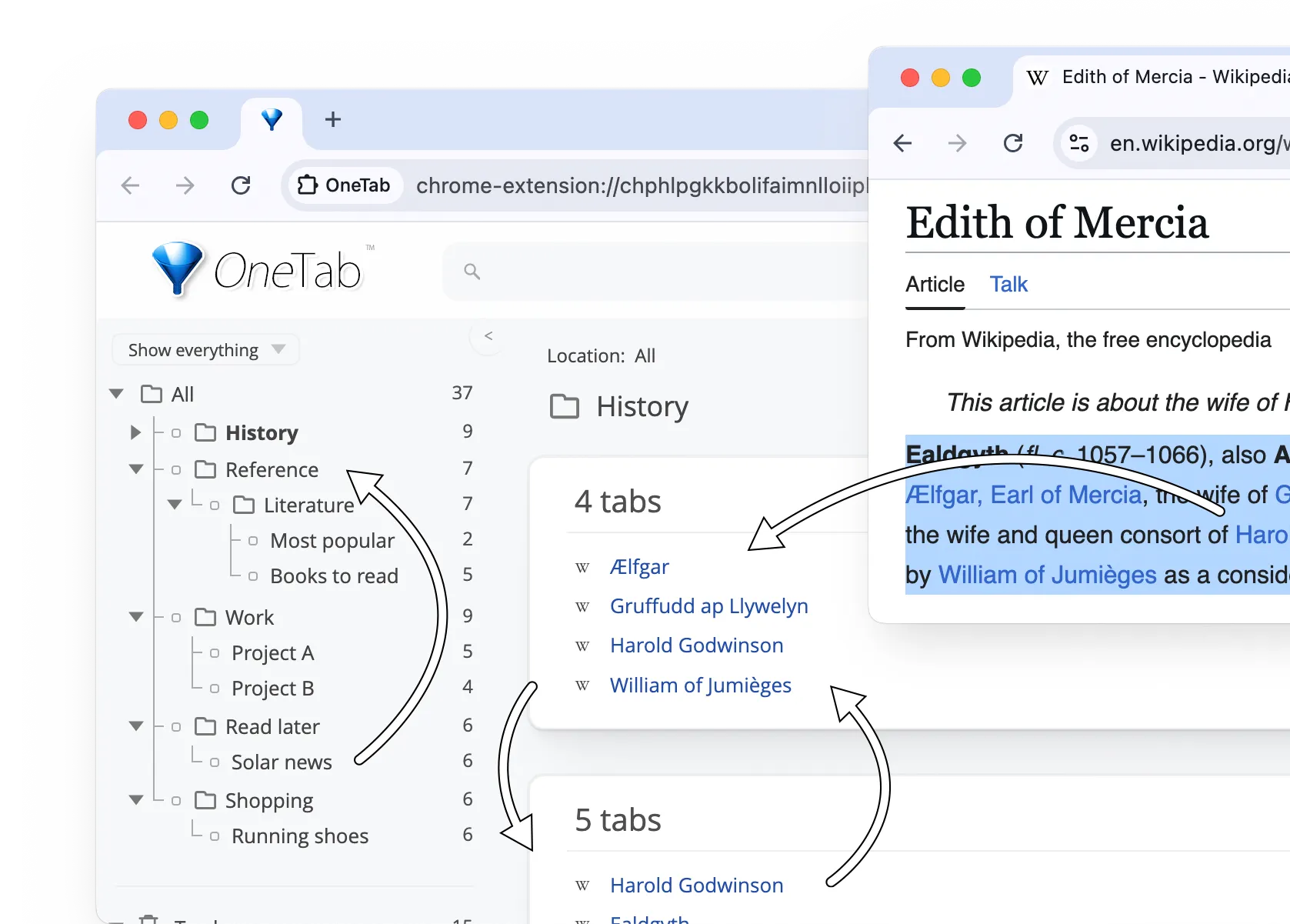
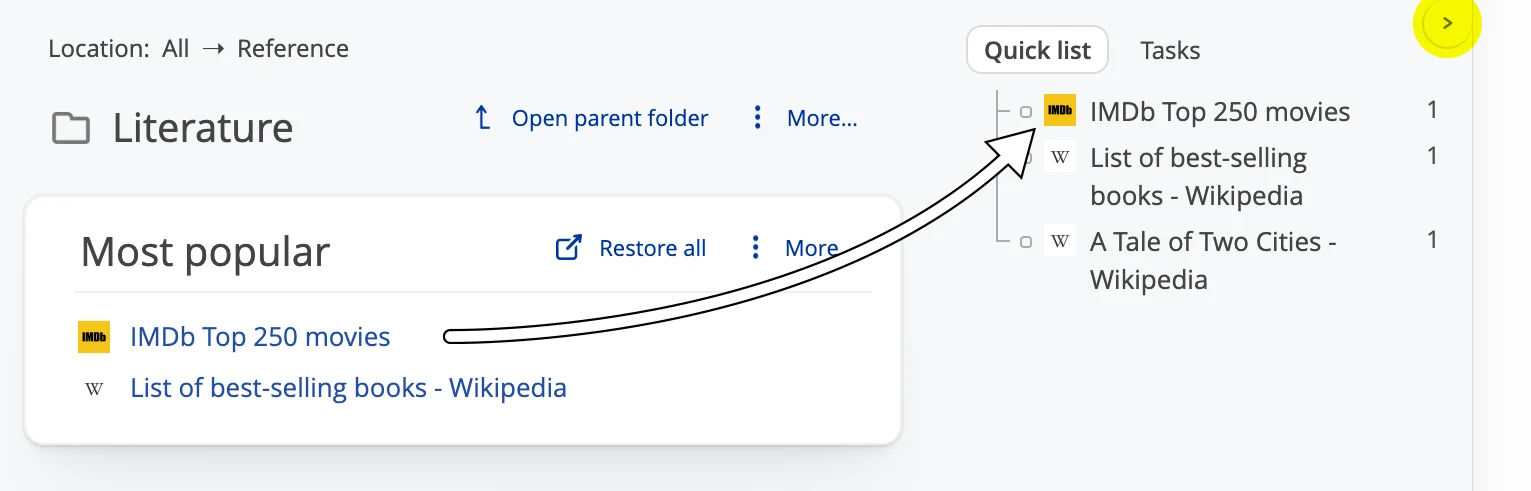
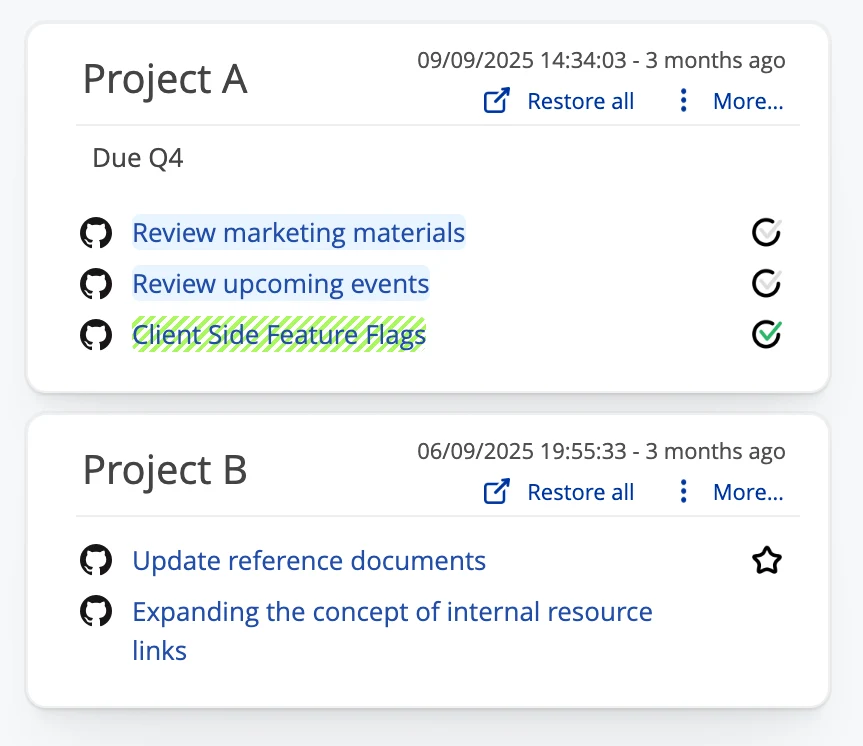
You can drag and drop everywhere - to reorder, to move, to import or to export.
If you drag tabs into a blank space in your page, a new group will be created for the tabs you drag.
If you drag one group into another group, the groups will be merged.


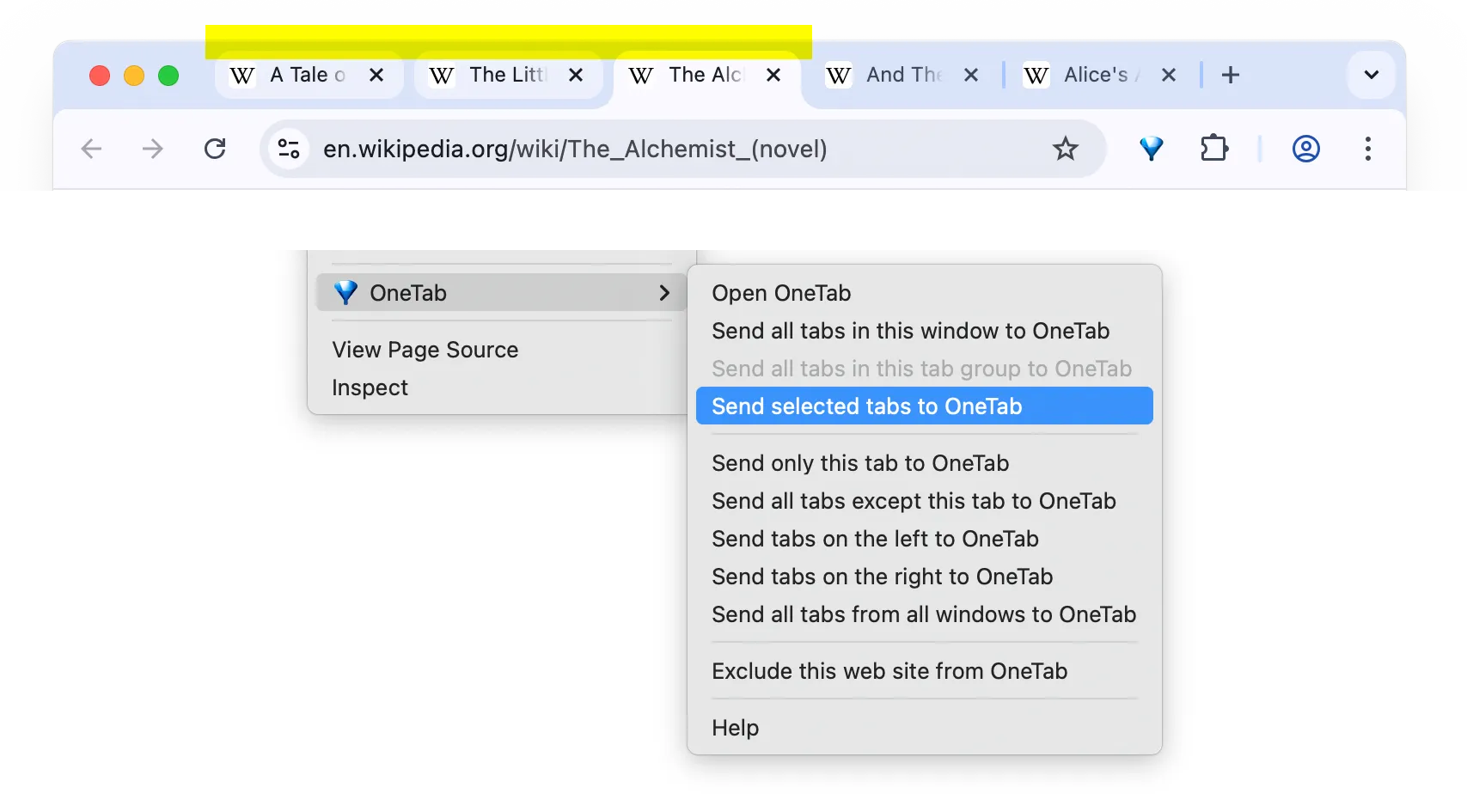
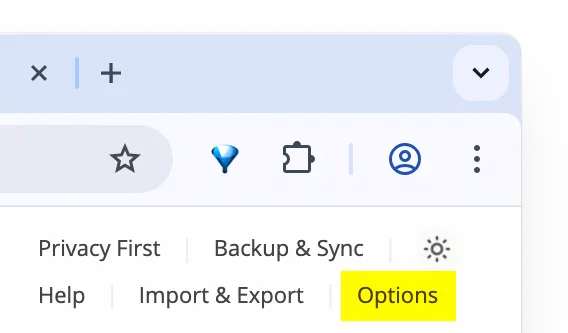
Right-click inside a web page to access the OneTab menu.
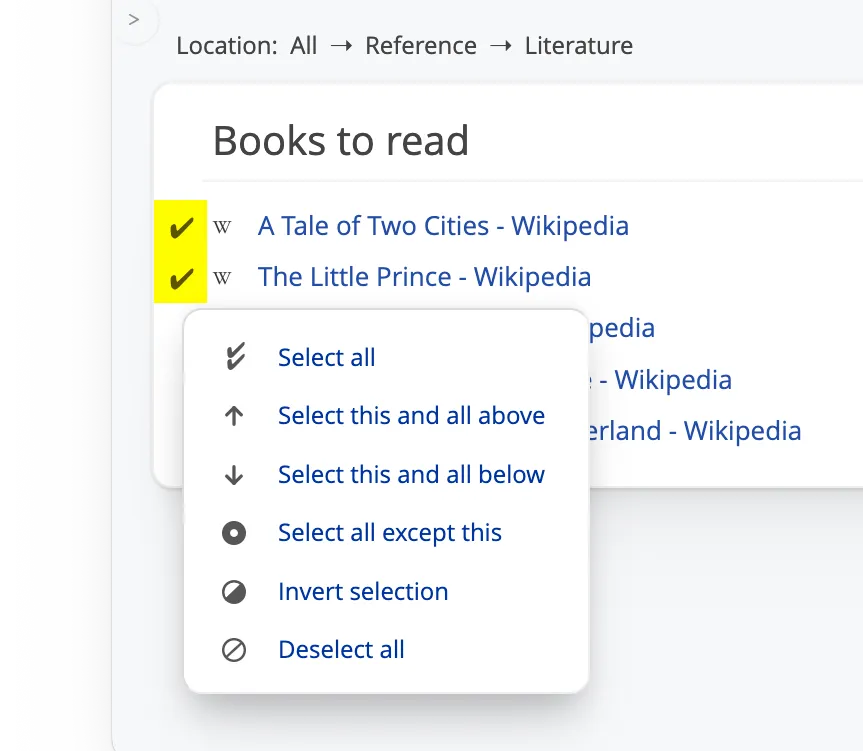
If you open the OneTab menu after selecting multiple tabs in your browser’s tab bar, you can choose to send only the selected tabs to OneTab. To select multiple tabs, hold the cmd/ctrl or shift key while clicking them.


Coming soon: You will be able to sync your OneTab data across multiple browser profiles and computers. OneTab has been completely rewritten so that changes made on one device will instantly appear on all other devices. If you use this feature, your data will be end-to-end encrypted with high-strength AES-256 encryption. This makes it impossible for the OneTab developers to see the tabs you have backed up or synced between devices, because only you have the encryption key.
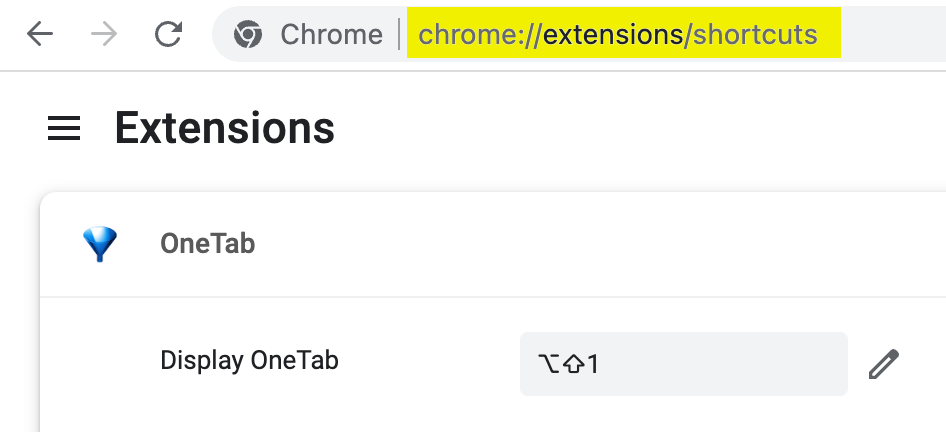
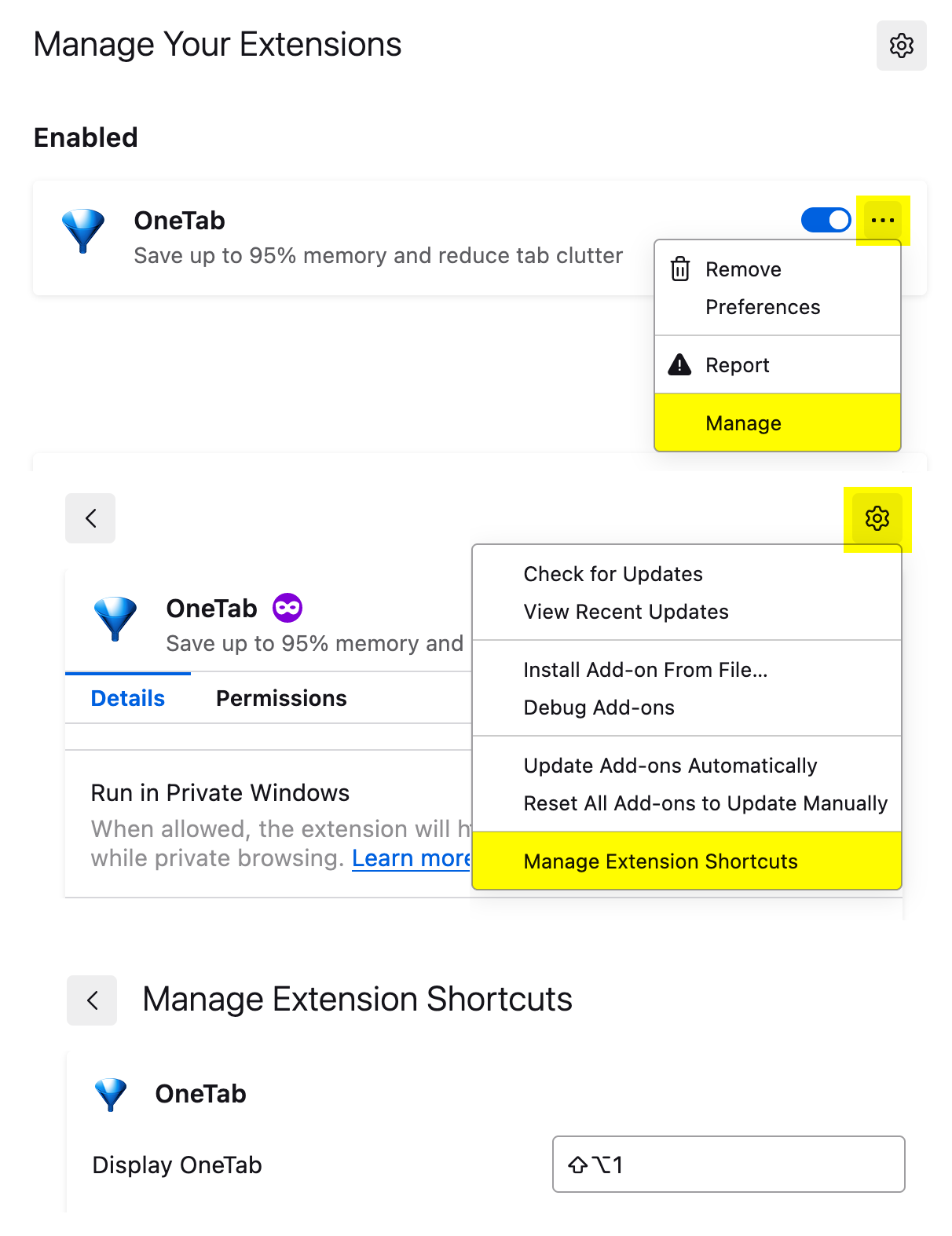
You can use the following keyboard shortcut to open OneTab:
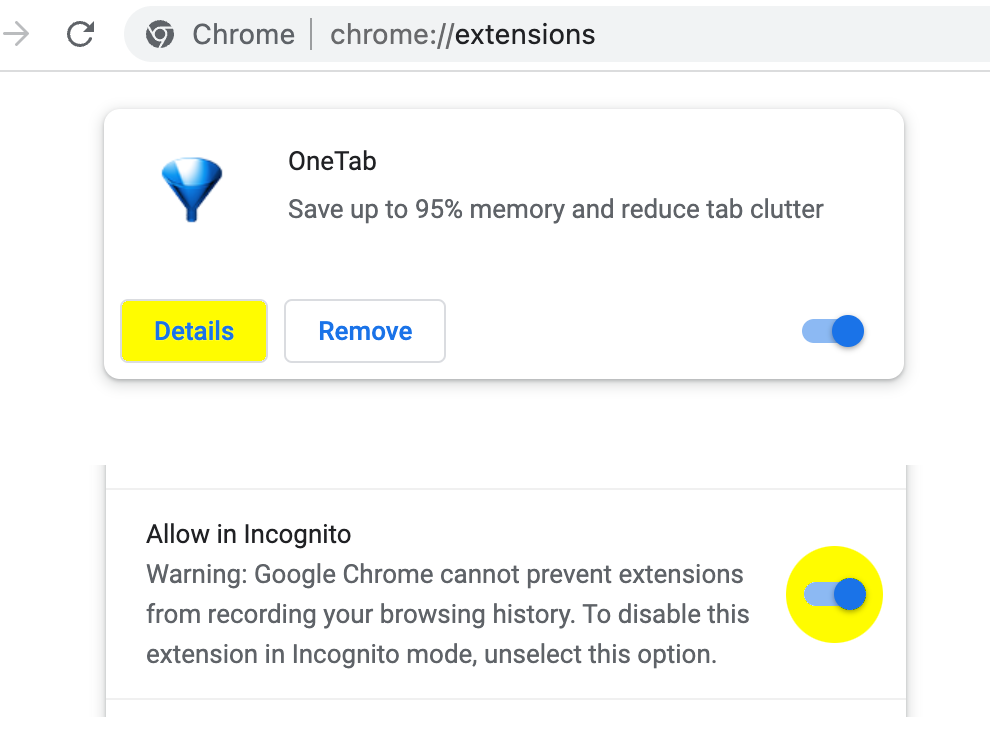
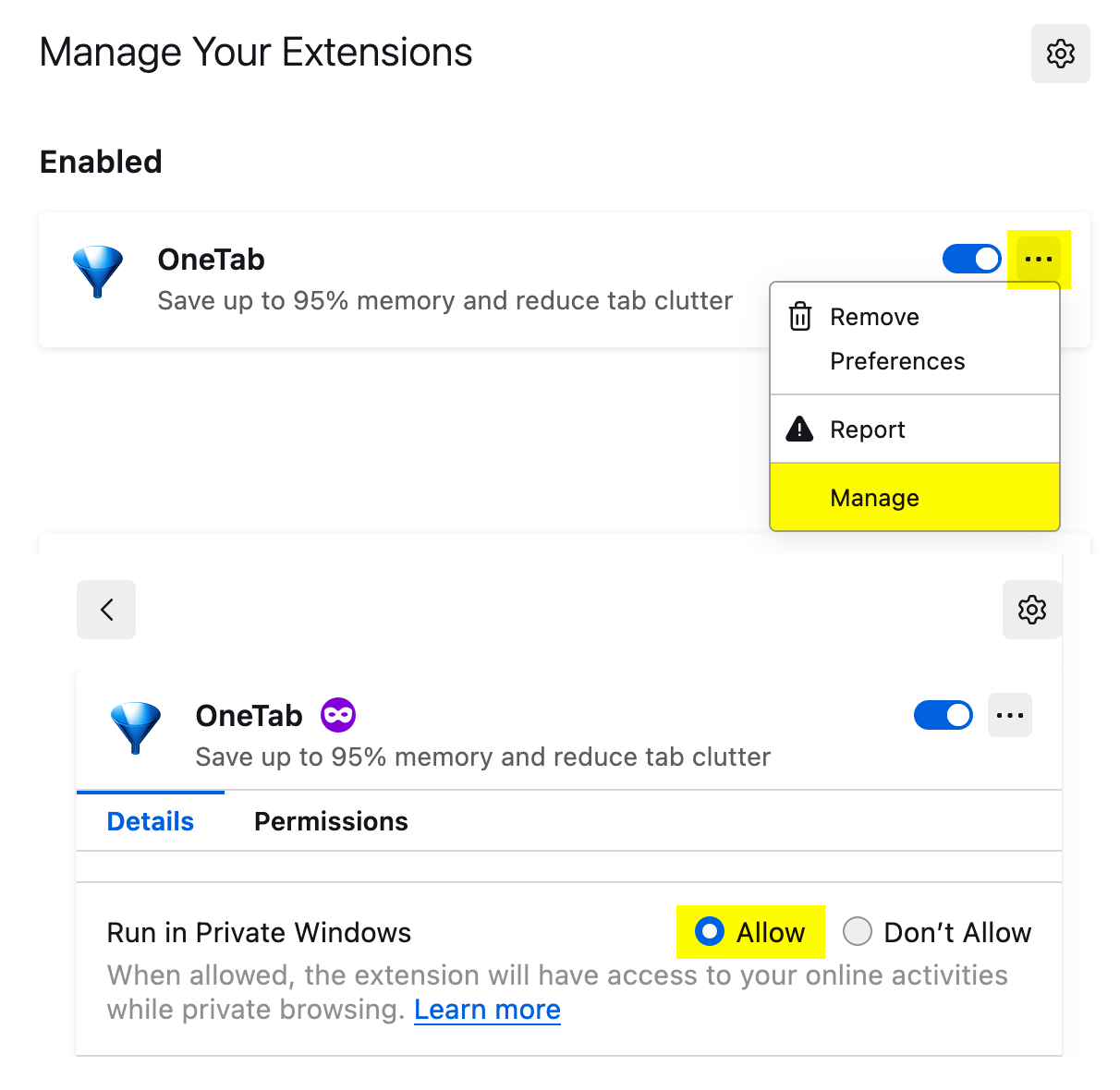
You can allow OneTab to store your incognito/private browsing tabs:
If for any reason OneTab does not appear to load, do not attempt to fix the problem by uninstalling and re-installing OneTab. This is because uninstalling OneTab will cause your browser to delete your stored tabs. In most cases, you can solve the problem by quitting and restarting your browser. For more troubleshooting information, please see our troubleshooting page.
Thanks for using OneTab. We love to hear from you. If you have a feature request, bug report, or other comment, please contact us here.
Please leave us a rating in the Chrome Web Store if you like what we are doing!